
Data Extraction
In order to know which respondent corresponds to which stratum, and who “finished,” we need to extract “variables” from the data source.
Virtual Lab maps variables from data sources into an internal name and format, so that it can optimize over them. This is where you define that mapping. All variables must be defined in order for the optimization to work.
Each row on this screen answers two independent questions:
| Question | Field | |
|---|---|---|
| Where | Where in the source is the value? | Location — Metadata or Variable |
| What | What does that value mean? | Use the value as it is, or Ad (which ad recruited them) |
They are separate on purpose. Changing where a value lives says nothing about what it means, and a token identifying an ad can arrive either as metadata (a Fly respondent who clicked an ad) or as a survey answer (someone who landed on your own web page first and brought it with them).
Name: The name of the variable as you wish it to be referred to in Virtual Lab. This should be the name of a variable defined under Variables, or the Finish Question Ref under Strata.
The rest depend on the data source.
Location: Is the data in “metadata” or in an individual “variable” (question)?Key: The name of the variable, within Fly, that you want to extract — the question ref you defined when creating the Fly survey, or the metadata key.Response: Whether you want the raw response or the “translated response” from Fly. Only applies to a Variable; metadata is looked up by key and has no response to select.
Location: Is the data in “metadata” (user metadata) or in an individual “variable” (question)?Key: The name of the variable, within Qualtrics, that you want to extract. This often has the form of “Q11” or something to that effect.
This is the simplest and most common pattern.
As an example, let’s pretend that you have created (3) different variables under Variables:
- Gender
- Age
- Location
These variables might have multiple levels, or some of them might only have one level. Regardless, we need to tell Virtual Lab how to assign individuals to strata for the optimization to work.
The simplest form of assignment is to use the ad set metadata itself to define assignment. If they come through the ad set that targets Gender:Women, Age:65+, Location:All, then we simply assume that the person belongs in that stratum.
To follow this pattern, simply create data extractions that look like this for Gender:
Name: GenderLocation: MetadataUse the value as it isKey: Gender
And repeat the same for Age and Location.
Finally, we need the finished question ref. Usually, this is in the variable, not in the metadata. Put together, the config looks like this:
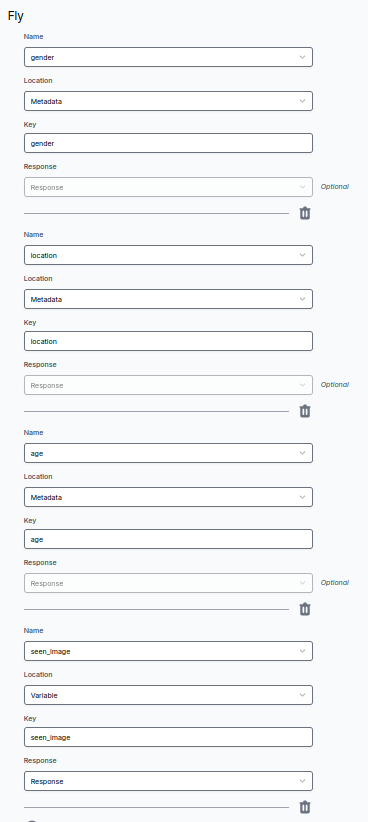
Often, we want to directly ask people in our survey about their demographics, such as age and gender, even though we are already using Facebook to target based on that information. While we generally expect Facebook’s demographics and self-reported demographics to be highly correlated, if the exact proportions are very important, it might be useful to extract that information from the survey.
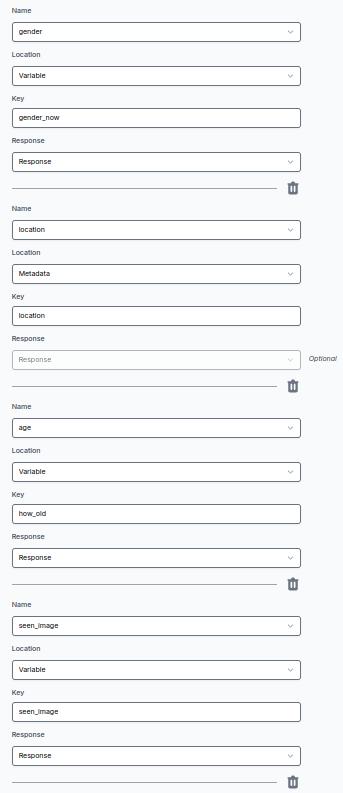
In that case, you can replace the Metadata extractions with Variable extractions. You could do this for all of them or part of them. In this example, we override age and gender with data collected in the survey. However, we stick with Metadata for location:
Use this when your destinations carry a looked-up ref — the setting under Destinations where the ad carries a short opaque token instead of spelling the stratum out.
The respondent brings back a token, not an answer. Virtual Lab resolves it against the Ad Attributions record of the ad that recruited them and reads the stratum variable off that.
Choose Ad (which ad recruited them) as the mapping. The two text fields then mean something different from usual, and the form’s prompts say so — getting them backwards is the easy mistake:
| Field | For an ordinary read | For an ad lookup |
|---|---|---|
Key | the key or field holding the value | the key or field holding the token. On Fly this is vt. |
Name | what to call the variable | the stratum variable to pull — creative, gender, Age — which is also what it is called here |
So a Gender extraction under this pattern is:
Name: gender— the stratum variable, and the name of the outputLocation: MetadataAd (which ad recruited them)Key: vt— where the token is
and you write one such row per variable, exactly as in Pattern #1.
A Fly source starts pre-filled. Open Data Extraction on a Fly source with nothing saved and you will find one ad-lookup row already there per variable you declared under Variables, since the variable’s name is exactly what the ad’s record is keyed by. Edit or delete them freely; nothing is saved until you save.
Both halves or neither. The write side (what the ad’s ref carries) and the read side (this setting) are independent and neither checks the other. A study that carries a token but does not look it up extracts nothing at all: every stratum counts zero, the optimizer reallocates on empty data, and nothing raises an error — it simply looks like nobody is being recruited.
Virtual Lab logs a warning when it sees a study in that state on a reconciliation run, but the warning is not visible in the dashboard. Check both screens.
This is for new studies. Do not switch an existing study over mid-flight. Virtual Lab recomputes a study’s entire history on every run, and the respondents who arrived before the change carry no token — so they would extract nothing, match no stratum, and vanish from your counts. If a study genuinely has to be retro-fitted, ask us; it needs a one-off backfill, not a settings change.
The lookup is not Fly-specific. A respondent recruited to a Web or App destination lands on your own page with the token in the URL. If you pass it into Typeform or Qualtrics as a hidden field, you can declare it here the same way:
Location: Variable(orMetadata, depending on how your platform surfaces it)Ad (which ad recruited them)Key: the field carrying the tokenName: the stratum variable
Two lookup rows under one source need not agree about where their token is — a study can recruit through several routes at once, and each row declares its own.