
Testing
To test a survey, you start it yourself the same way a respondent would. How you do that depends on the channel.
You need two things you supply yourself:
- The Facebook Page ID or username of the Facebook Page.
- The shortcode of the form you want to test.
You can find the username by going to the page and seeing what is in the URL bar of your browser. The part after “facebook.com” will be the username:
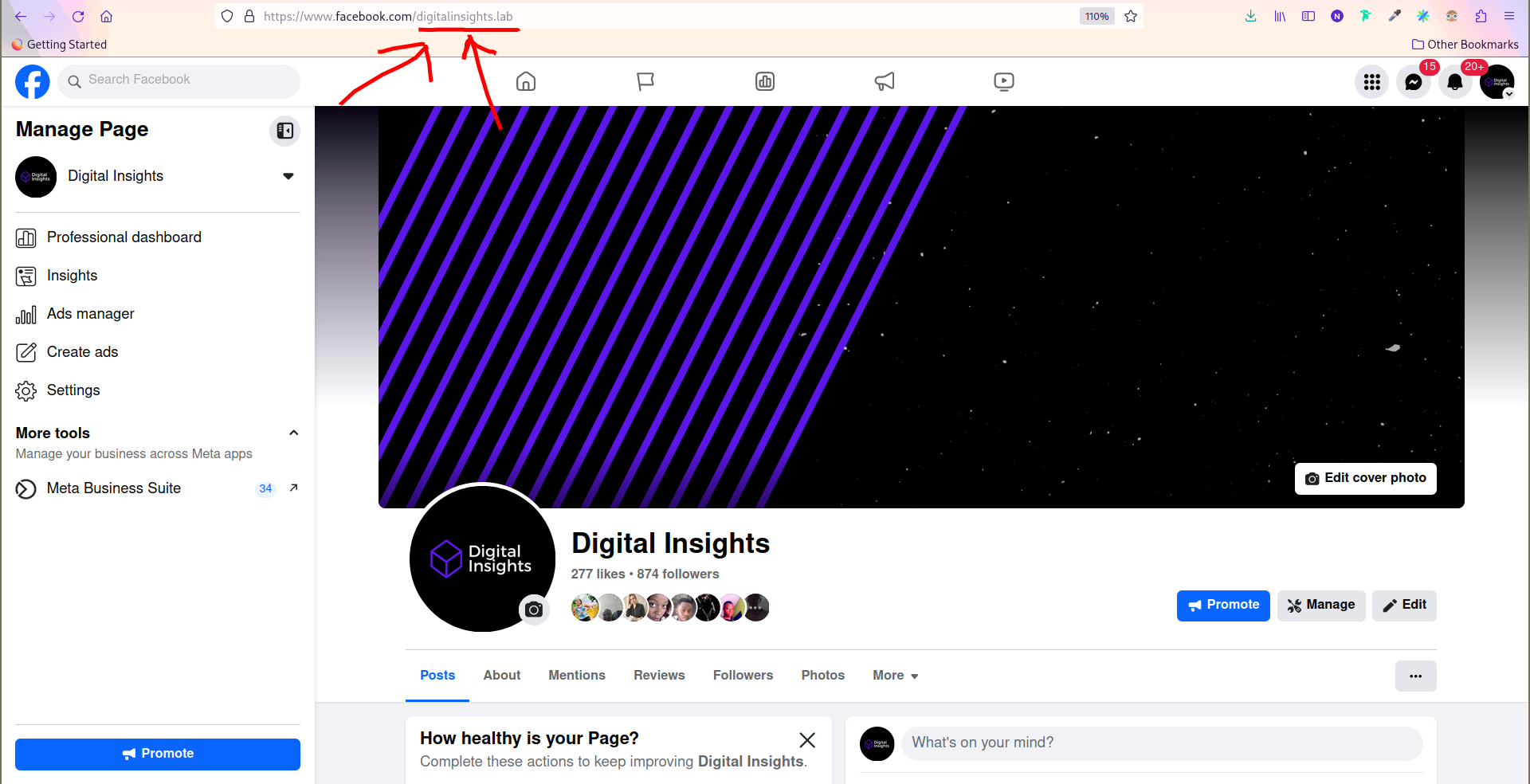
Given that your Facebook username is “digital.insights” and you want to test the form with the shortcode “mytestcode”, go to:
https://m.me/digital.insights?ref=form.mytestcode
Replace “digital.insights” with your Page’s username and “mytestcode” with the shortcode you want to test.
You can add extra key-value pairs after the shortcode, exactly as a recruitment
ad does. They arrive as hidden fields, so this is how you test logic that branches
on creative, gender, a random seed or anything else an ad would carry:
https://m.me/digital.insights?ref=form.mytestcode.creative.3b.gender.men
You need the survey’s WhatsApp number and the shortcode. From your own phone, open:
https://wa.me/<number>?text=form.mytestcode
<number> is the number in international form with no +, spaces or dashes.
Tapping the link opens a chat with the message prefilled; press send. Sending
form.mytestcode to the number by hand does exactly the same thing.
Extra metadata works as it does on Messenger:
https://wa.me/<number>?text=form.mytestcode.creative.3b.gender.men
Test on a real phone. Click-to-WhatsApp context is mobile-only, and several of the WhatsApp-specific failures — a question with too many choices, a button label over 20 characters, a long wait with no template — only show up when a real message is actually sent. See WhatsApp Surveys and Channels.
Neither link above tests your ad. On WhatsApp the ad’s prefilled message is the only thing routing respondents into your survey, so before spending anything: click the real ad on a real phone, and read the compose box before pressing send. It must contain the entry reference and nothing else.
Fly does not allow anyone to take a survey twice, so you cannot simply repeat the steps above with the same account.
Use the special reset reference provided to you by your administrator. It works
the same way on both channels — as a ?ref= on Messenger, and as the message
text on WhatsApp.
While you test, keep the Monitor tab open on the survey. It shows the state you are in after each message, and the error tag if something failed to send — which is much faster than guessing from the chat.
If you find yourself in the wrong survey entirely, the reference did not resolve: see Default Page Response.